Alight Motion QR Codes – Scan, Import & Create Stunning Effects

Making cool edits on your phone sounds easy until you’re 40 minutes deep in keyframes and your clip still looks mid-level. I’ve been there. That’s when I discovered something called Alight Motion QR codes. Usually, what happens is one minute you’re trying to add a zoom effect, and then you get stuck in menus that you don’t even understand.
These are like cheat codes images for video edits. Instead of building effects from scratch, you scan an image and the effect just shows up like magic. Your video gets clean transitions, spicy color grading, or even full edits without doing the hard stuff by yourself. Zero stress, max glow-up.
Whether you’re just starting out or you’ve been editing for a while and want to speed things up, QR codes are a serious game-changer. After trying this, you won’t want to use the old method again.
What Are QR Codes in Alight Motion (And Why They’re So Popular)
Alight Motion QR codes are like mini project links – packed into a square graphic. They are scannable images that let you import ready-made effects, transitions, or full video edits into your app without building them from scratch.
They hold all the key settings for a specific effect. So, whether you want a vibrant coloring style or a zoom transition, you can get it in seconds. They even include presets like shake effects, blur, keyframe moves, and more.
Instead of sharing a file or link, you just scan, and boom – a full animation project opens inside Alight Motion. Creators use them to swap effects, transitions, text animations, and more. You’ll see them all over TikTok bios, YouTube tutorials, and editing groups. Think of them as quick-share for motion graphics.
Steps for Scanning Alight Motion QR Codes Without Glitches
For Android:
For iPhone:
How to Import Alight Motion QR Code Presets From Your Gallery
After scanning, tap the “Import” button in the app. The project file will load directly into your timeline. XML errors often go away after updating to the newest version. If it doesn’t work:
Best Alight Motion QR Codes (Free Collection)
Let’s be honest, not all packs are worth it. But these are total game changers:
Shake Presets
Perfect when you want that dramatic TikTok bounce or a hype energy boost. Add impact without doing manual keyframes.
Shakes
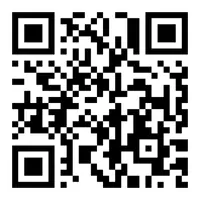
Zoom Effects
Use zoom-ins on drops or transitions. Looks like high-level edits, done in seconds. These effects make your edit feel pro-level, even if you’re editing in pajamas at 2 AM.
Zoom
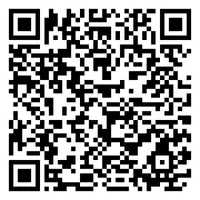
Coloring (CC)
Want that orange-teal cinematic vibe with moody blues? These can fix your colors without needing to understand curves or LUTs.
50+ Colorings
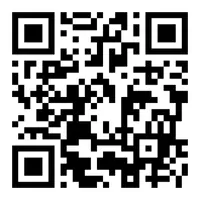
Colorings
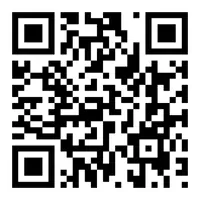
Text Animations
Want your text to pop, bounce, or glow like you’re designing an After Effects trailer? These QR codes make it happen and fit smoothly into your editing timeline.
Text Animation
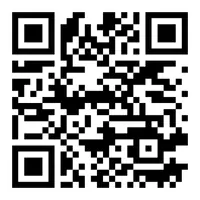
Text Effects
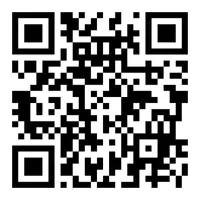
Transitions (Jedag-Jedug, Blur, Motion Wipes)
You know the ones. Fast cuts, blurry smears, velocity chaos, it’s all in here. Just scan and enjoy the vibe.
Blur Transition
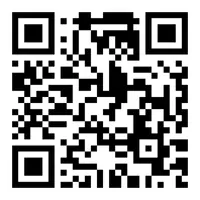
Full Edit QR Codes
Import entire scenes with transitions, audio sync, and effects – all in one scan. It’s like borrowing someone’s whole editing brain.
How to Create Your QR Codes in Alight Motion
Ready to share your own effects? Here’s how you create your own:
- Open your finished project in Alight Motion
- Export it as a project package (not a video)
- Use the QRbot app (iOS) or Google Lens (Android) to turn your XML link into a QR code.
- From the QRbot app, click on My Codes and then Add New
- Paste the project’s link and turn it into a QR code
- Test it on a second phone to be sure
Where to Find New Packs (2026 Picks)
Top creators often release free QR packs on Instagram, Pinterest, and YouTube Shorts. Search with words like ‘2026 Alight Motion QR codes’, ‘free effects’, or ‘XML transitions’.
Smart Use Cases
Anyone can start, even without expert knowledge. QR codes make it easier for everyone.
Who | Use Case |
|---|---|
Creators | Share effect bundles with followers |
Influencers | Drop transition presets in their bios |
Small Businesses | Link to promo videos on posters |
Teachers | Share explainer videos as homework image |
Editors | Build a full portfolio |
Common Problems – And Simple Fixes
Problem | Quick Fix |
|---|---|
opens App Store | Use “Open in Safari” or “Copy → paste in browser” |
Nothing happens after the scan | Clear the Alight Motion cache, try a different browser |
It says “invalid project” | Make sure you’re not using a corrupted XML link |
blurry or not scanning | Increase brightness, scan from 10–12 inches away |
Most Asked Questions
Final Thoughts
I’ve been using the Alight Motion Mod app for quite a while now. In the beginning, I was just trying it out for fun. Then I found out about QR codes, and everything changed. Editing became quicker, smoother, and honestly more fun.
The first one I tried was a shake effect. I scanned the image, and the whole setup loaded instantly. No keyframes to build, no guesswork. Just a clean effect that worked right away. It felt like a huge shortcut, but in a good way. Since then, I’ve used them for all kinds of edits – color grading, transitions, text animations. These save you time and let you spend more energy on being creative instead of setting things up.
Even if you’re new to editing, you’ll get the hang of it fast. These codes are simple but powerful. They’ve made my editing flow better and helped me enjoy the process again. If you’re new to these, I suggest picking one to begin with. It might surprise you how easy and helpful it is.